
The main page for the 1901 Transcription Project is the National Summary page. This page includes:
It is important to note that the list of districts only indicates whether someone is already working in that district, if you want to work in a district that isn't listed all you have to do is register that district or send an email (using the link provided at the bottom of the page) asking for the district to be registered. To look at the currently available records or to start transcribing click on the name of the district of interest.
The heart of the system is the page used to transcribe the census. The page is divided in two, the top part shows the image for the page being transcribed and the bottom contains a web input form for entering the transcription.
|
| Image of part of the transcription page. |
Note the set of controls just above the image which are used to manipulate the image, and the scrollbars below and to the right of the image.
 |
 |
 |
 |
 |
 |
 |
| zoom in | zoom out | pan left | pan right | pan up | pan down | center |
Using the control buttons causes a new image to be loaded, which is relatively slow, while using the scrollbars simply scrolls the window, which is instantaneous. Each image will only show a portion of the page and it will be necessary to use the control buttons to view the full fifty lines of the form. It is important to realize that when one scrolls the image using the scrollbars the controls can be scrolled out of view, in which case you will have to scroll back to the top left in order to load the next image.
Images from the archives will load at one
of two different magnifications. If the image loads at the lower
magnification, as shown below, click on the zoom-in control
() once to bring up the image at the
best magnification.

After zooming in, the image will appear as below, some images will
appear at this magnification on first load. At this magnification you
can see all the fields used in the index using only the scrollbar and
will only need to use the pan-down control
()
to view additional lines.
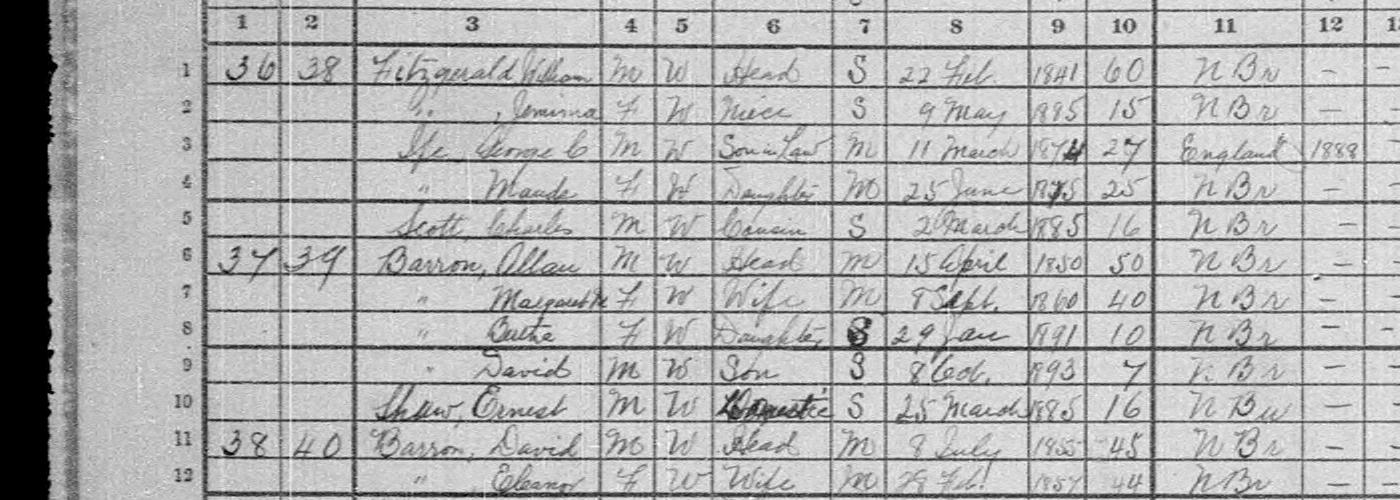
 |
| Image of the input form. |
The lower part of the screen contains the input form. After you position the image, click once in the lower part of the screen, anywhere except in one of the input fields, then press the tab key once. This scrolls the frame down to show the input form and places the cursor in the first input field. After filling out the fields and pressing enter, or clicking the submit button, the data you have entered is saved in the database and the form is reloaded so you can enter the next line. Unless you click on one of the controls in the upper part of the screen you shouldn't have to click in the lower part again, you should be able to just press the tab key to get back to the first input field. The tab key can also be used to move from input field to input field so that you don't have to move your hand to the mouse to reposition the cursor. When you tab to an input field represented with a drop-down selection box, you can type the first letter of the value you want to select instead of using the mouse, again removing the need to remove your hand from the keyboard. If multiple items start with the same letter, such as son and sister, press the first letter multiple times to cycle through the various values starting with that letter.
Below the input form is a table showing all the lines entered so far. If the page hasn't been claimed or you have claimed the page then next to each row is an edit link which allows you to edit previously entered lines.
In order to record credits for a page, and to protect pages from random changes by users who may not be familiar with the transcription guidelines, the transcriber can claim a page. When you first open the transcribe page for a census page, the system checks whether the page has been claimed, if not it displays a link that allows to claim the page. Click on the Claim this page link. You need to be registered as a volunteer and signed on in order to claim a page. The link for claiming the page will only appear at the top of the page the first time you open the page for transcription but if you scroll to the bottom of the page the link will appear there if the page is claimable (isn't already claimed).